



Connecting Waive with Hostaway
This guide walks you through linking your Hostaway property management system to Waive so that reservations sync automatically and guest damage waivers can be applied to your bookings.
Before you start
Make sure you have the following ready:
- A Hostaway account with access to the Marketplace.
- A Waive account and workspace (sign in at
app.waivecover.com). - Permission in Hostaway to generate API keys.
Note on credential naming. Hostaway labels its credentials "Account ID" and "API key." Waive labels the matching fields "Hostaway Account ID" and "Client Secret." The Hostaway API key is the value you paste into Waive's Client Secret field. Keep this in mind so you do not mix them up.
Part 1: Generate your API credentials in Hostaway
Step 1: Open the Marketplace
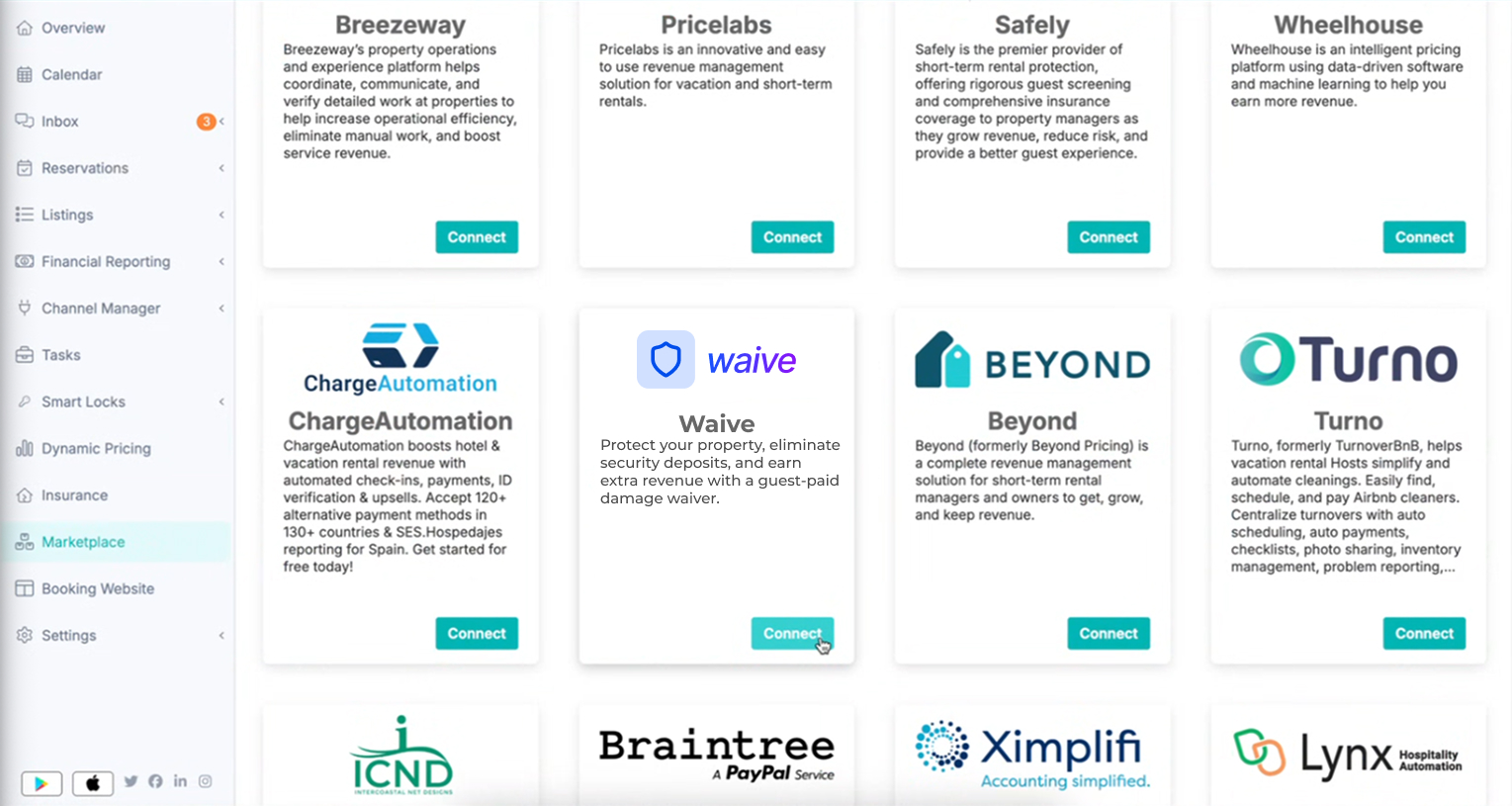
Log in to Hostaway. In the left sidebar, click Marketplace.
Step 2: Find and open Waive
Locate the Waive card in the Marketplace grid. The card describes Waive as a way to protect your property, eliminate security deposits, and earn extra revenue with a guest-paid damage waiver. Click the card to open the Waive integration page.
Step 3: Start the connection
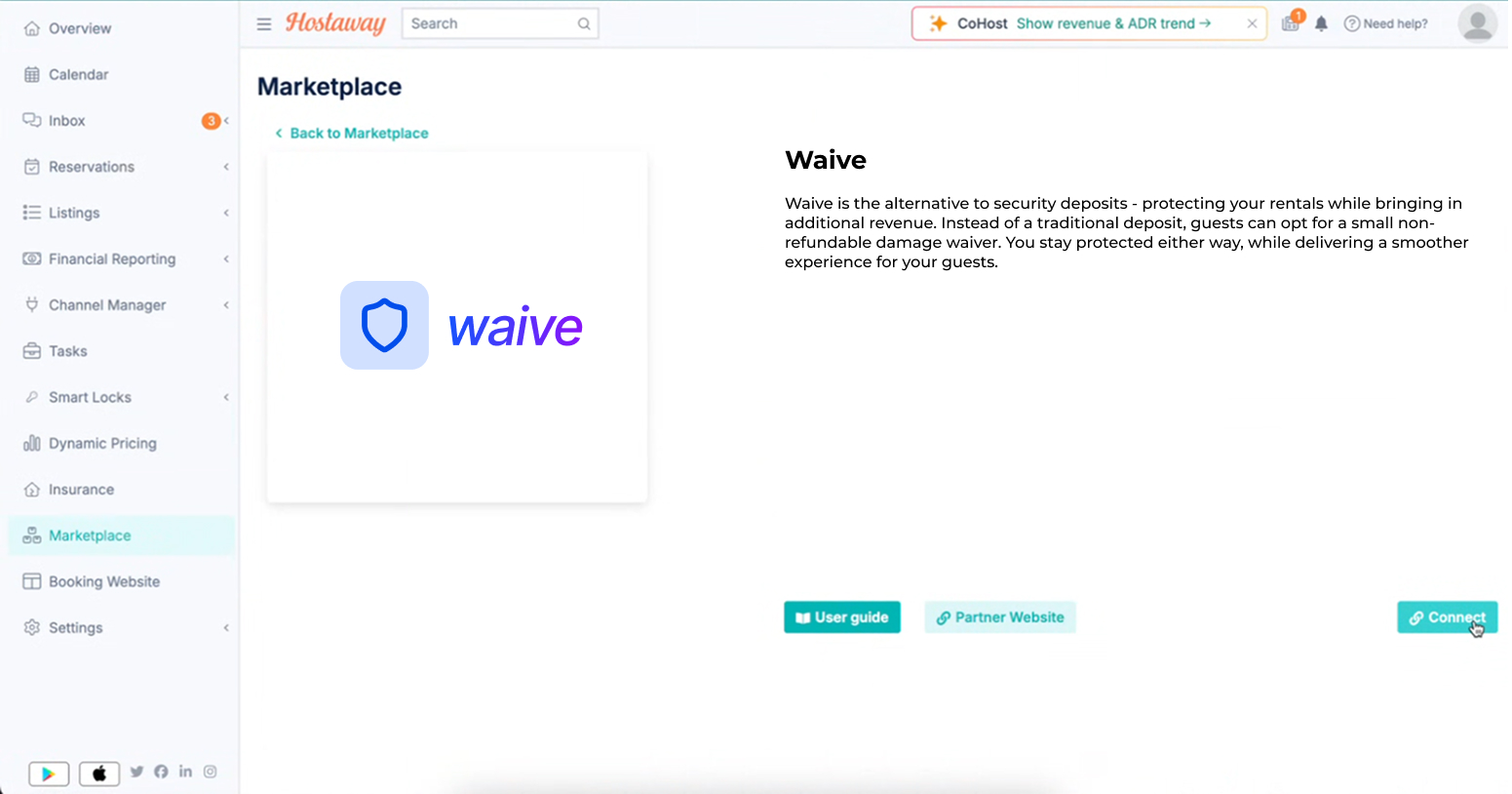
On the Waive integration page you will see a short description along with User guide, Partner Website, and Connect buttons. Click Connect.
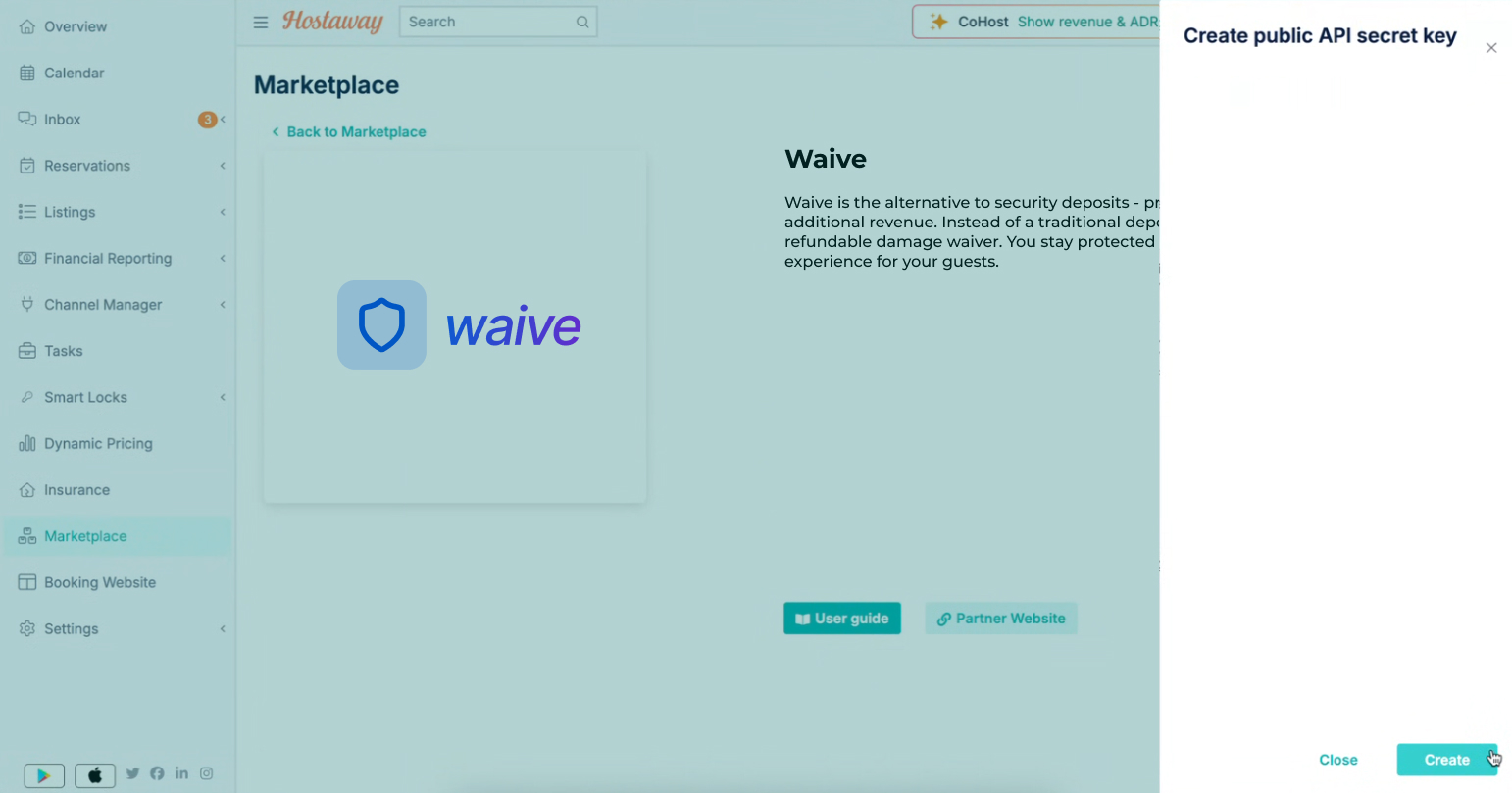
A side panel titled Create public API secret key slides in from the right.
Step 4: Create the key
Click Create at the bottom of the panel.
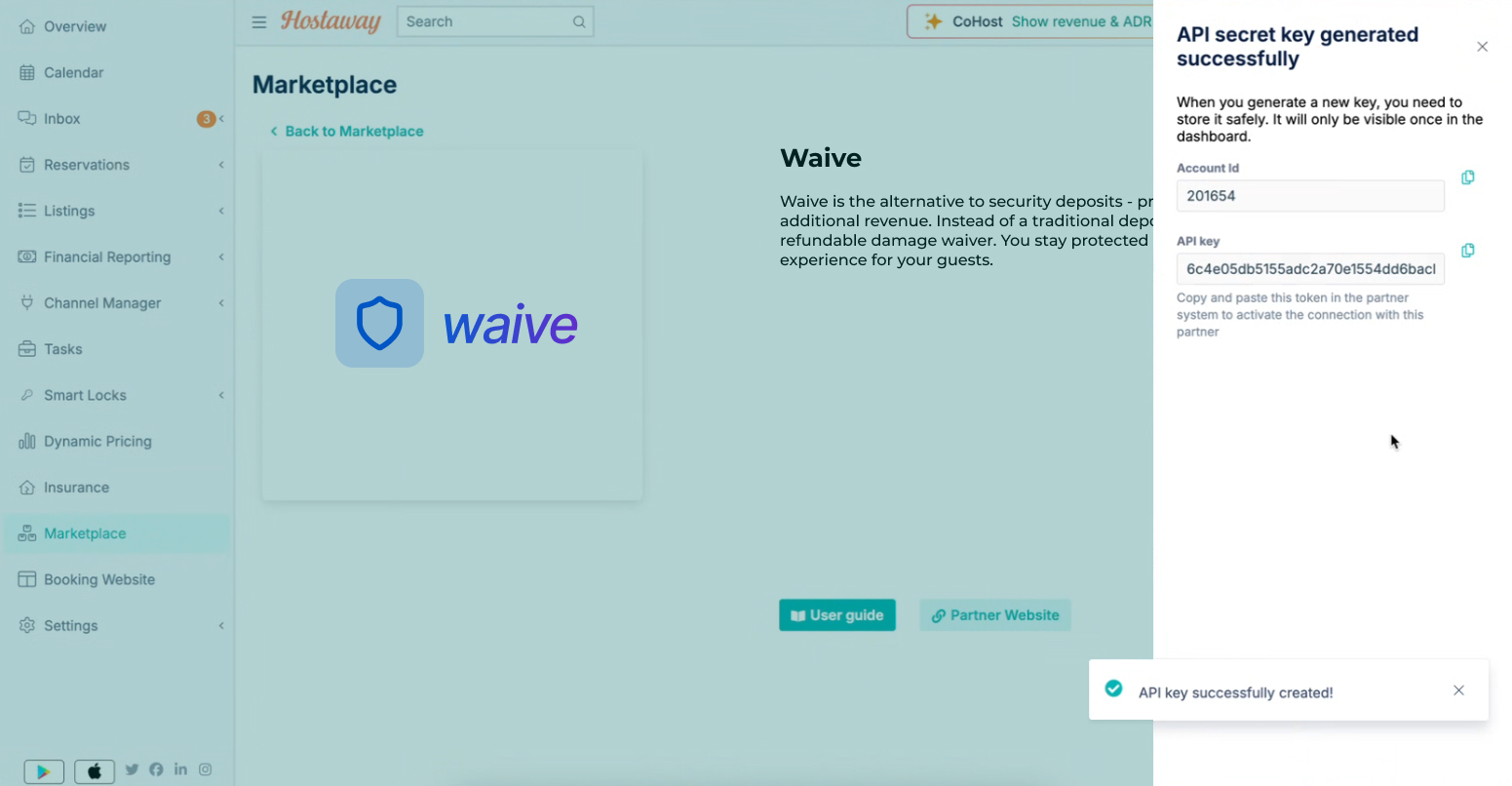
Hostaway generates the credentials and the panel updates to API secret key generated successfully. You will now see two values:
- Account Id (a numeric ID, for example
201654) - API key (a long alphanumeric string)
Step 5: Copy and store both values
Copy the Account Id and the API key somewhere safe before closing the panel.
Important: The API key is shown only once. If you close the panel without copying it, you will need to generate a new key. Use the copy icons next to each field to avoid typos.
Part 2: Connect Hostaway inside Waive
Step 1: Open Integration settings
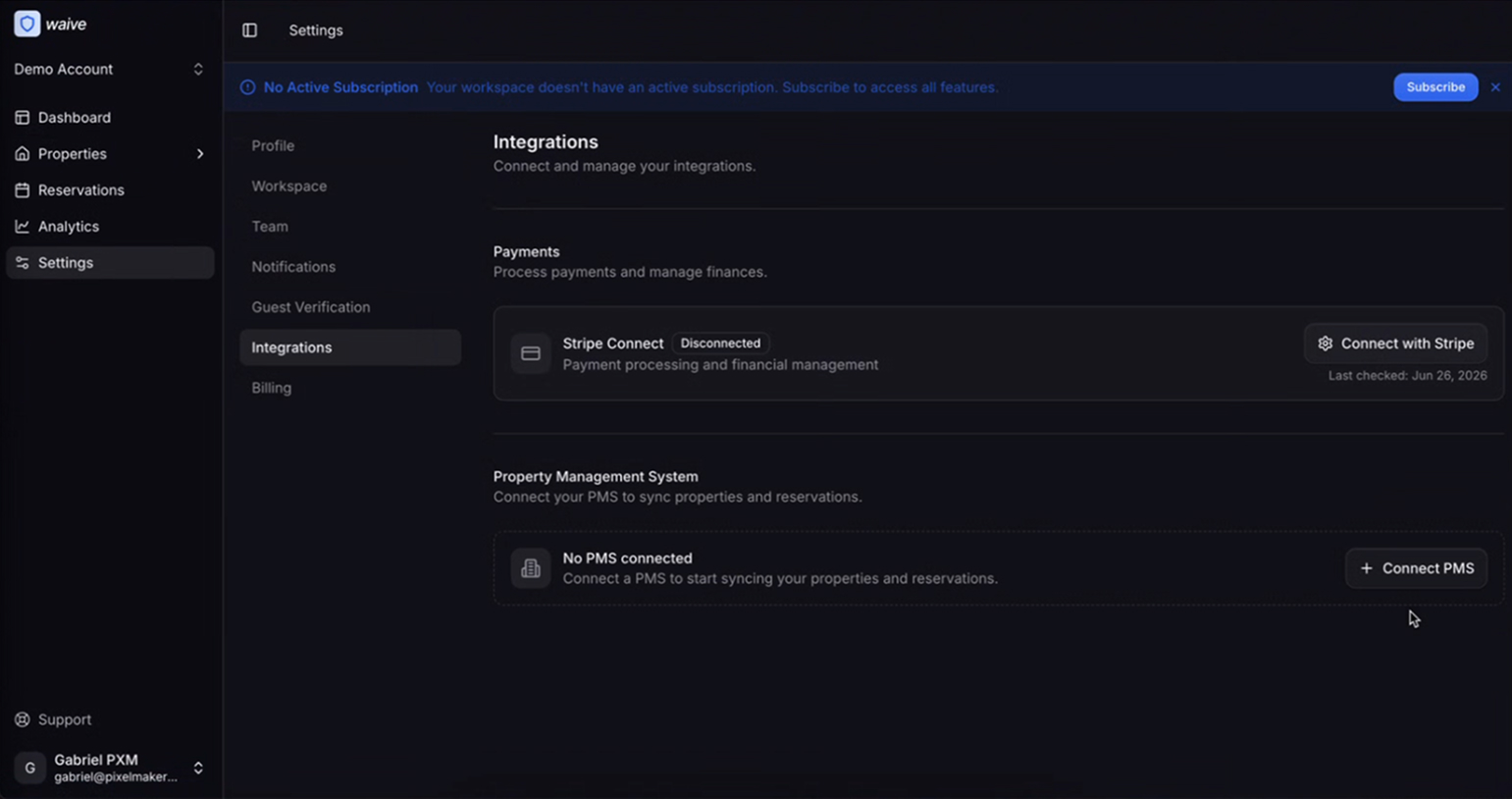
Sign in to the Waive app at app.waivecover.com. In the left sidebar, click Settings, then select the Integrations tab.
You will see two sections: Payments (Stripe Connect) and Property Management System. If no PMS has been linked yet, the Property Management System section reads "No PMS connected."
Step 2: Start adding a PMS
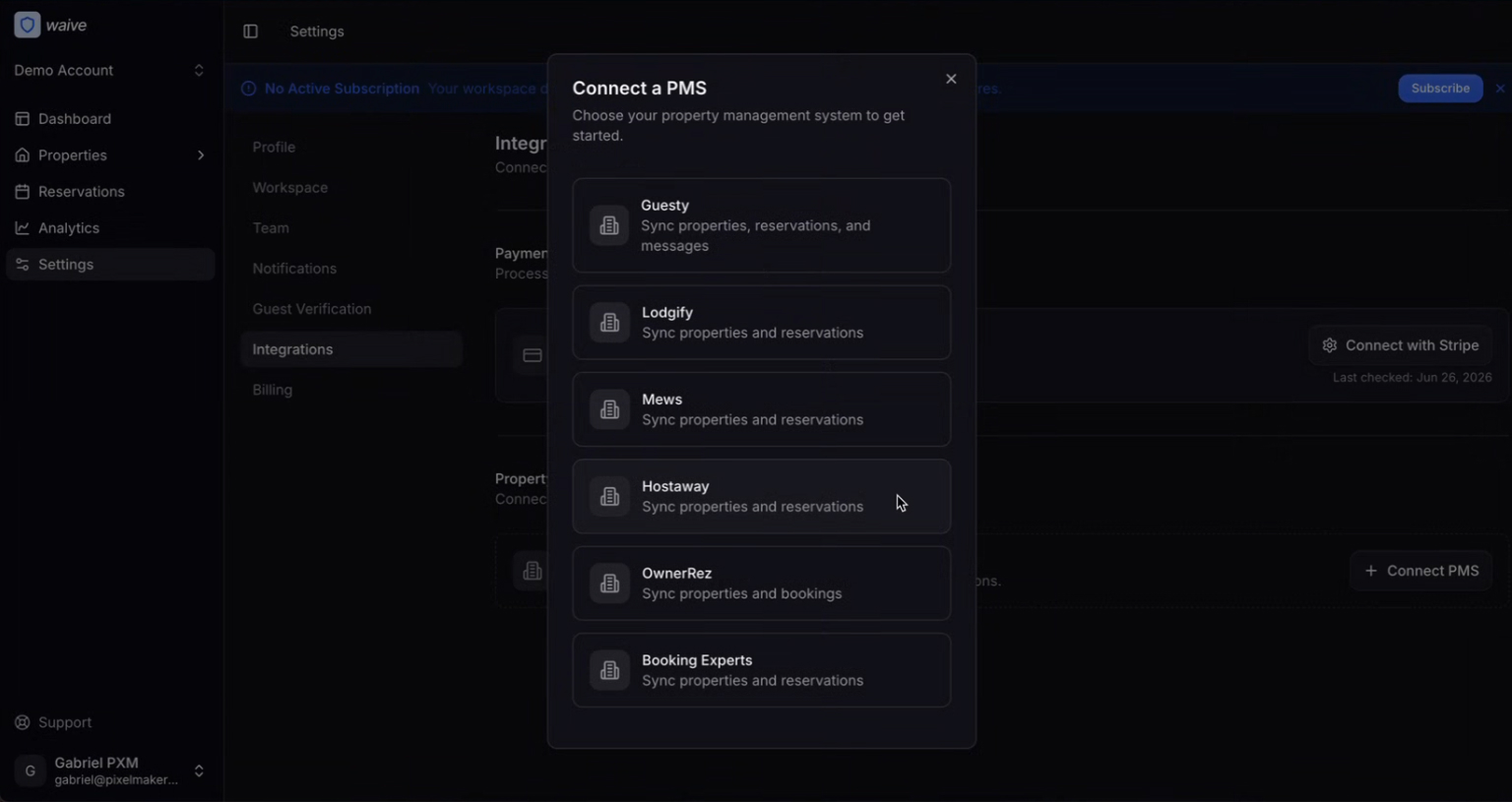
In the Property Management System section, click Connect PMS.
A Connect a PMS dialog opens listing the supported systems: Guesty, Lodgify, Mews, Hostaway, OwnerRez, and Booking Experts.
Step 3: Choose Hostaway
Select Hostaway from the list.
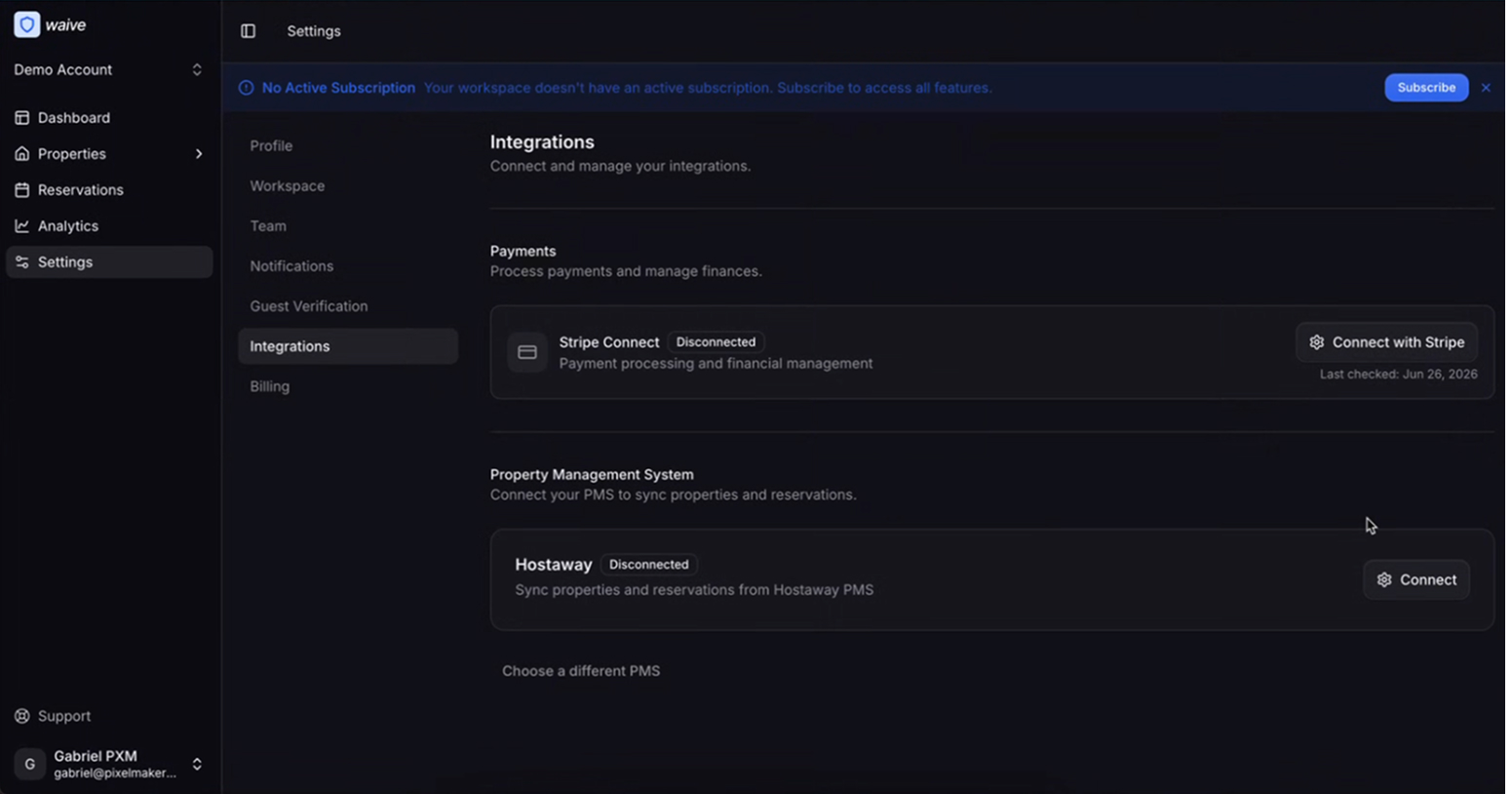
Hostaway now appears in your Integrations page with a Disconnected status. Click Connect on the Hostaway row.
Step 4: Enter your credentials
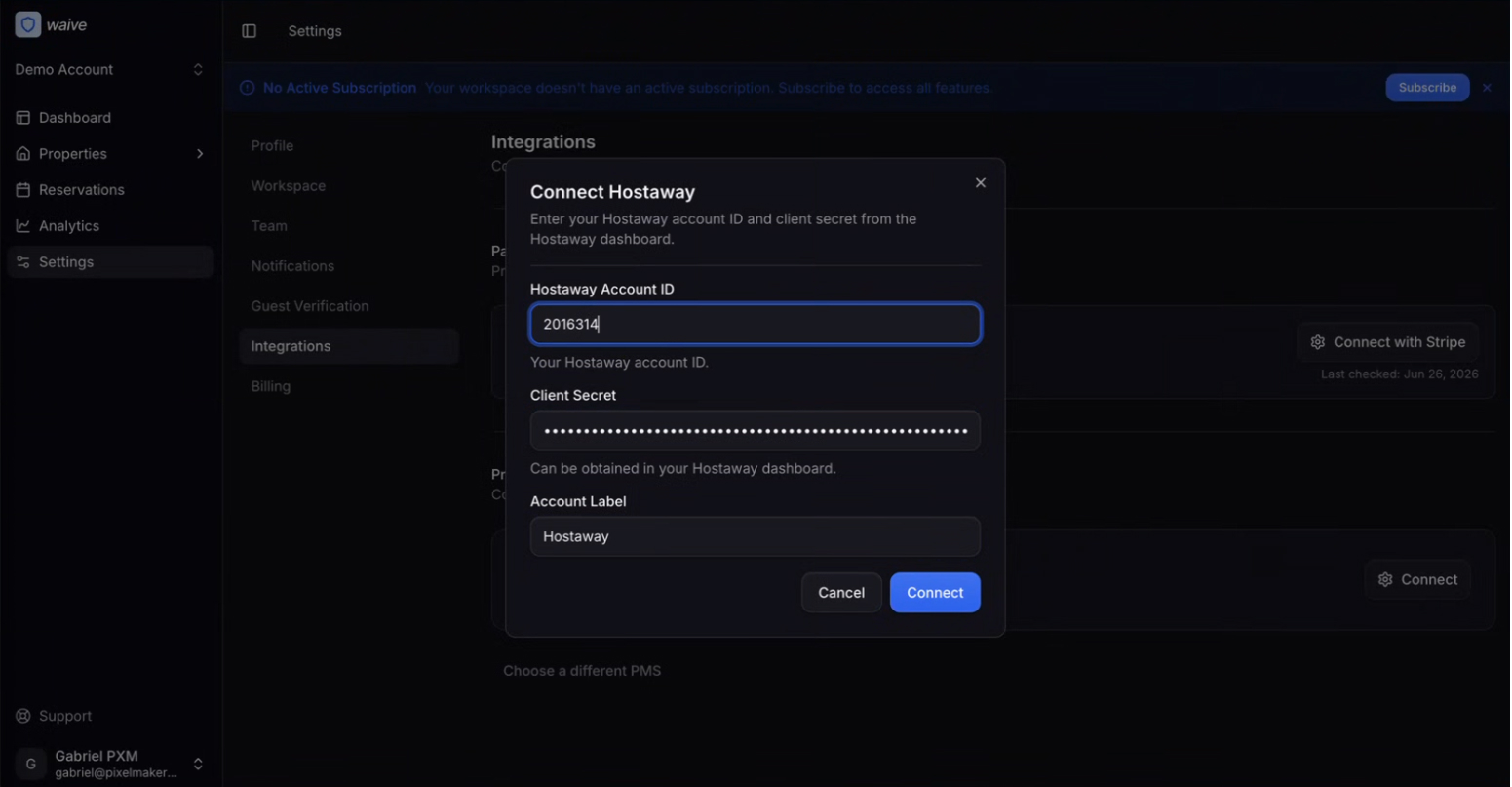
A Connect Hostaway dialog opens with three fields. Fill them in using the values you copied from Hostaway:
Waive fieldWhat to enter
Hostaway Account ID
The Account Id from Hostaway (for example 2016314)
Client Secret
The Hostaway API key
Account Label
An optional name to identify this connection, for example Hostaway
Step 5: Confirm the connection
Click Connect.
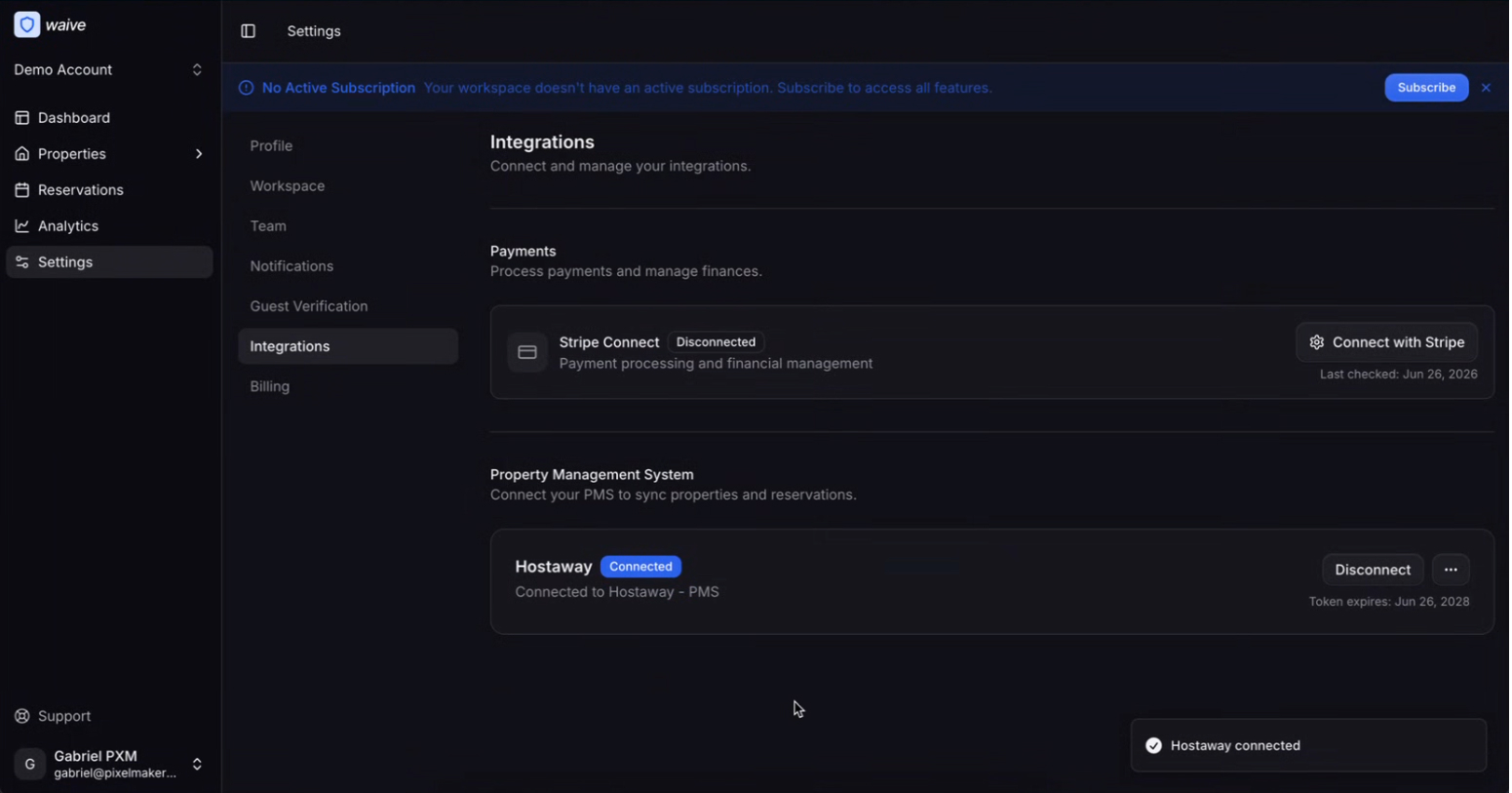
Waive validates the credentials and links the account. When it succeeds:
- The Hostaway row updates to a Connected status and shows "Connected to Hostaway - PMS."
- A token expiry date is displayed (for example, two years out).
- A Hostaway connected confirmation message appears.
Your properties and reservations will now sync from Hostaway into Waive.
After connecting
To start collecting damage waiver fees on synced bookings, complete these remaining items in Waive:
- Connect Stripe. In Settings > Integrations, under Payments, click Connect with Stripe. This is required to process guest payments.
- Activate your subscription. If you see a "No Active Subscription" banner, click Subscribe to unlock full functionality.
- Review your synced properties. Open the Properties section to confirm your listings imported correctly and to configure waiver fees.
Troubleshooting
The connection fails after entering credentials?
Double-check that you pasted the Hostaway API key into the Client Secret field, not the Account ID. Confirm there are no extra spaces at the start or end of either value.
You lost the API key?
Return to the Waive integration page in the Hostaway Marketplace and generate a new public API secret key, then re-enter the new values in Waive.
Hostaway is not listed in the Connect a PMS dialog?
Make sure you are on the latest version of the Waive app and that your workspace has the integration enabled. Contact Waive support if it is still missing.
Properties are not syncing. Verify the connection still shows Connected in Waive and that the token has not expired. Reconnect if needed.
Need help?
- Waive support: use the Support link in the Waive app sidebar.
- Hostaway: use the Need help? link in the Hostaway dashboard, or the User guide button on the Waive Marketplace listing.