



Connecting Waive with Booking Experts
This guide walks you through linking your Booking Experts property management system to Waive so that bookings and reservations sync automatically and guest damage waivers can be applied.
Before you start
Make sure you have the following ready:
- A Booking Experts account with permission to install apps.
- At least one administration set up in Booking Experts (this is the account or entity Waive will sync with).
- A Waive account and workspace (sign in at
app.waivecover.com).
Part 1: Install the Waive app in Booking Experts
Step 1: Open the Apps section
Log in to Booking Experts. Navigate to Apps, then open Available apps.
Step 2: Find and open Waive
Select Waive from the list of available apps. The Waive app page opens, showing a short description (Waive is the alternative to security deposits, protecting your rentals while adding revenue through an optional guest-paid damage waiver) along with useful information such as the developer, contact email, and countries of operation.
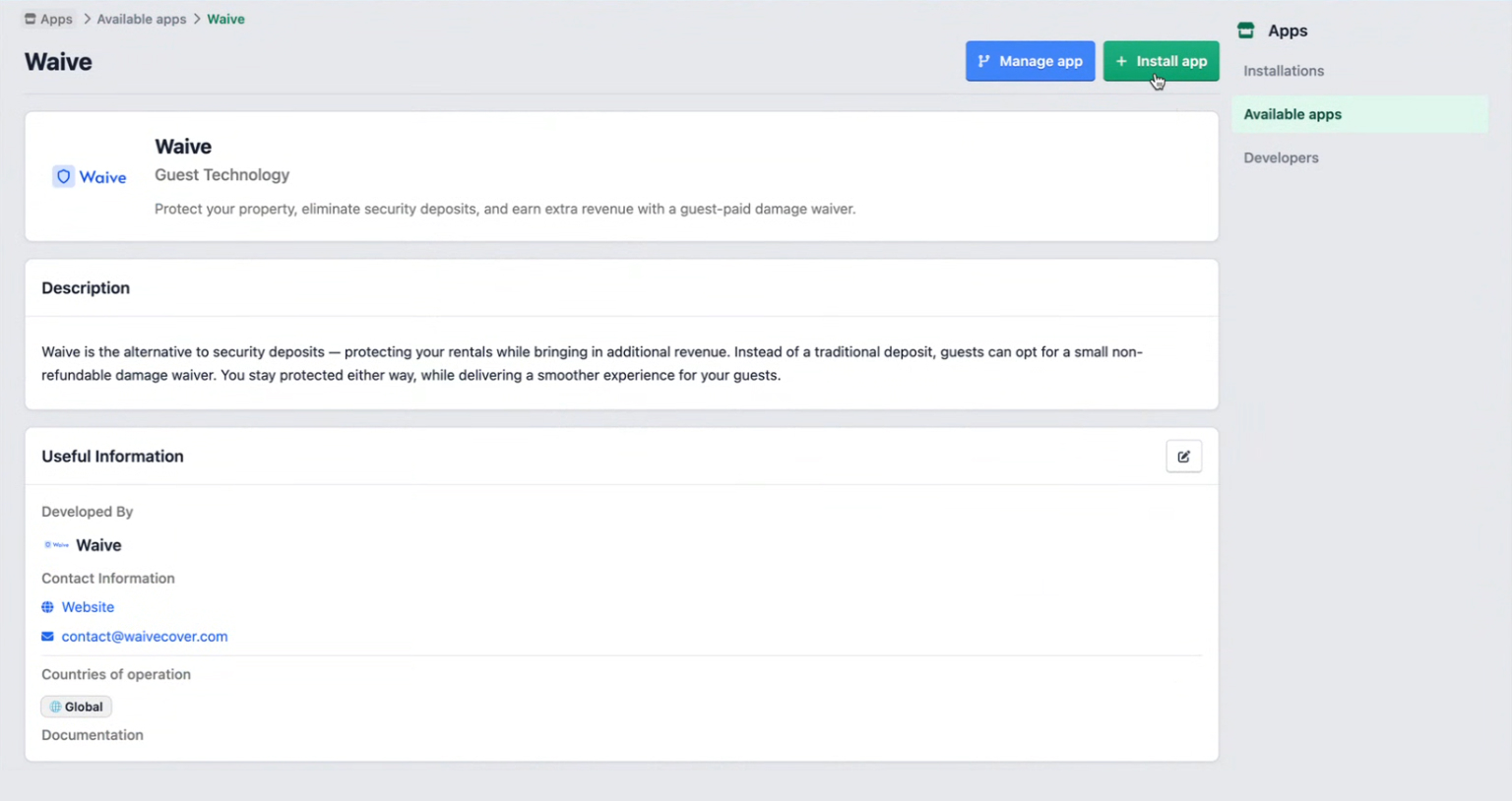
Step 3: Start the installation
In the top right of the Waive app page, click the green Install app button.
The Manage app button next to it is only used after installation, for adjusting or removing the app later.
Step 4: Review the requested permissions
The Install app page lists the permissions Waive needs in order to read your bookings and apply waivers. These include:
- Read bookings
- Read inventory objects
- Read objects
- Read reservations
- Read types
- Update bookings
- Update reservations
These permissions let Waive see your reservation data and apply or update damage waivers on the relevant bookings.
Step 5: Choose your administrations
Scroll down to the Choose administrations section. This is where you select which Booking Experts administrations Waive will be active in.
- Use the search box to find an administration by name or ID if you have many.
- Tick the checkbox next to each administration you want to connect (for example,
3773 Waive cover Sandbox 1). - You can select the header checkbox to include all listed administrations at once.
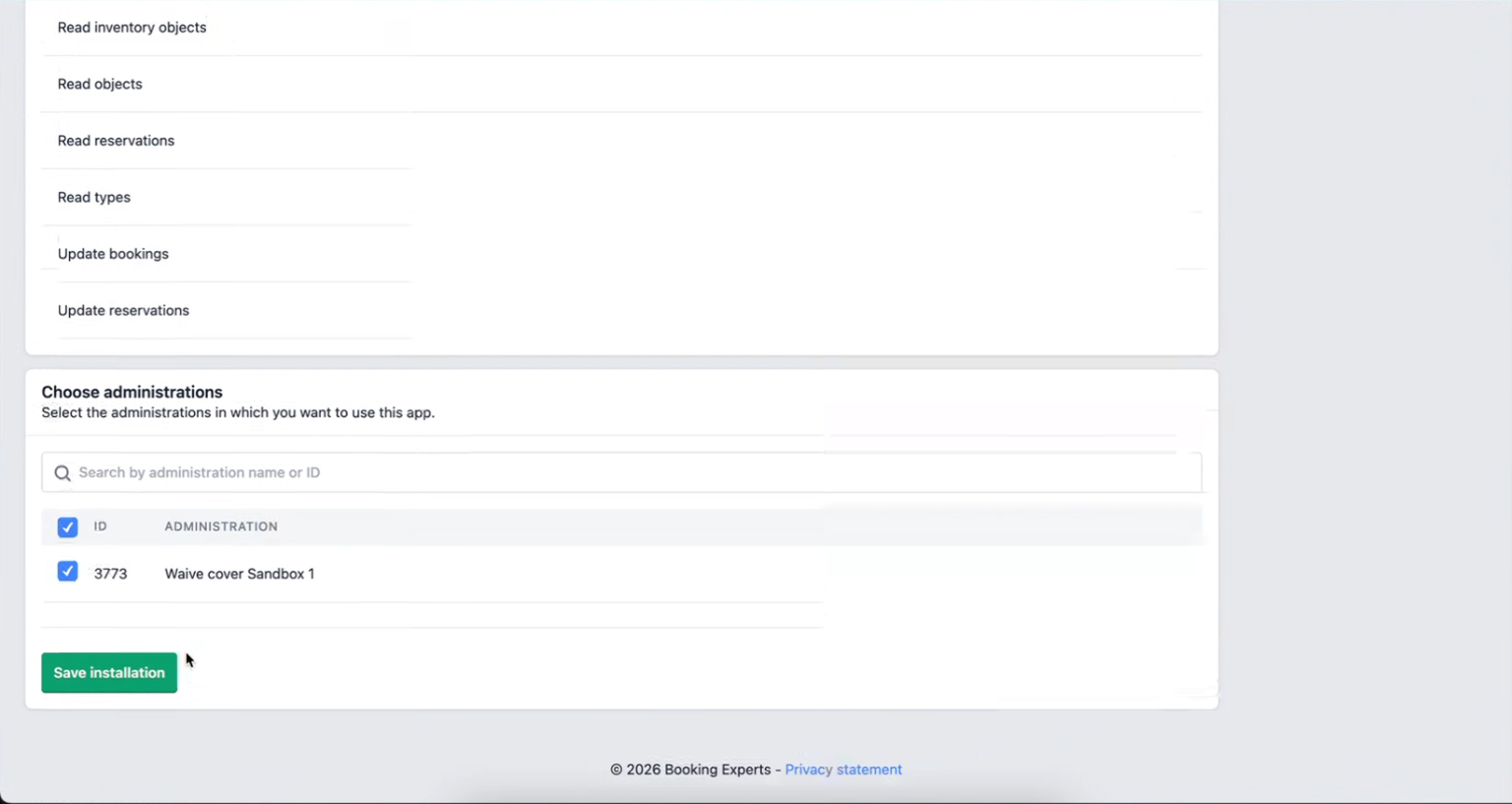
Step 6: Save the installation
Click Save installation.
Booking Experts installs the app and establishes the connection with Waive using the permissions and administrations you selected.
Part 2: Confirm the connection in Waive
Step 1: Open Integration settings
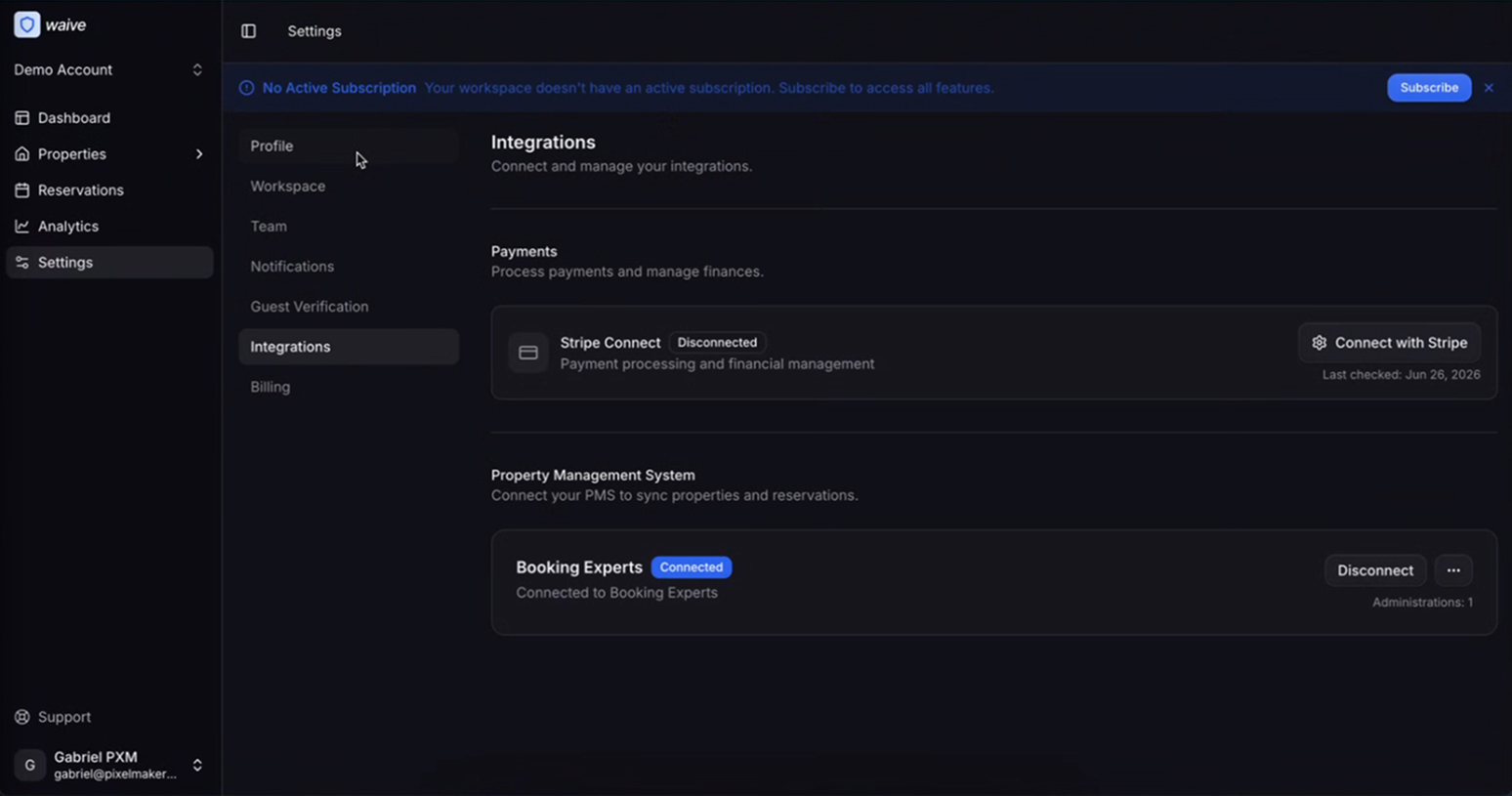
Sign in to the Waive app at app.waivecover.com. In the left sidebar, click Settings, then select the Integrations tab.
Step 2: Verify the Booking Experts status
In the Property Management System section, you should now see Booking Experts listed with a Connected status and the label "Connected to Booking Experts." The number of linked administrations is shown on the right (for example, "Administrations: 1").
If you see this, the integration is live and your bookings will sync into Waive.
After connecting
To start collecting damage waiver fees on synced bookings, complete these remaining items in Waive:
- Connect Stripe. In Settings > Integrations, under Payments, click Connect with Stripe. This is required to process guest payments.
- Activate your subscription. If you see a "No Active Subscription" banner, click Subscribe to unlock full functionality.
- Review your synced properties. Open the Properties section to confirm your listings imported correctly and to configure waiver fees.
Troubleshooting
Booking Experts does not show as Connected in Waive?
Return to Booking Experts, open the Waive app page, and confirm the installation was saved. Make sure at least one administration was selected before saving.
Some properties are missing in Waive?
Check that every administration containing those properties was ticked during installation. To add more, open the Waive app in Booking Experts, click Manage app, update the selected administrations, and save again.
You need to change permissions or remove the app?
Use the Manage app button on the Waive app page in Booking Experts to adjust the installation or uninstall it.
Bookings are not updating?
Confirm the "Update bookings" and "Update reservations" permissions were granted during installation. Reinstalling the app restores them if they were missed.
Need help?
- Waive support: use the Support link in the Waive app sidebar, or email
contact@waivecover.com. - Booking Experts: refer to the documentation linked on the Waive app page within the Booking Experts Apps section.